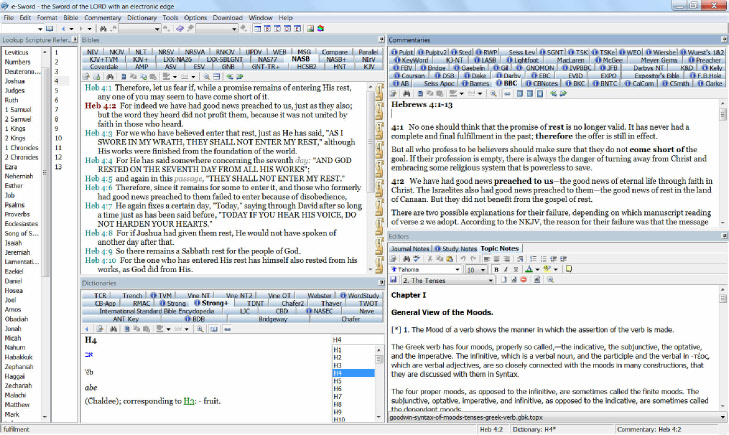


e-Sword Screenshots
Real Live Examples From Real Live e-Sworders
One of the most exciting e-Sword upgrades happened in the summer of 2009. Rick’s
e-Sword 9.5 included “windows dockability” - the ability to move, drag, re-arrange,
re-size, and close the individual windows of e-Sword. While it didn’t increase the
intellectual content at all, it gave a rocket sized boost to the emotional content
of the software. I could now make e-Sword “my way.” Remember those BK commercials?
Hold the pickles, hold the lettuce,
Special orders don’t upset us,
All we ask is that you let us
Serve it your way!
So - If I wanted to maximize the Bible space my way, I could do that. If I wanted
to minimize the dictionary space my way, I could do that. If I wanted to.... And
many of us did.
For two years, now, we’ve been resizing the e-Sword windows to our own little heart’s
delight. After a recent DDT blog entry (“Maximize Productivity” with e-Sword settings
and more), it dawned on me that most e-Sword users had never seen examples of other
people’s e-Sword desktops. I thought showing some real live desktops from real live
users might give folks some ideas of how they could better set up their own.
I sent out a few emails this past week, asking some users to send me: 1) a screenshot
of their e-Sword Desktop; and 2) a short paragraph explaining why they arranged their
workspace as they had. I think you’ll be interested in some of the responses I got.
What follows are pictures of the e-Sword Desktop of real live people (some of them
quite famous in the e-Sword community, by the way). Enjoy the pictures -- and the
reasons why each of these people use the setups you find pictured.
Oh, if you’d like a quick lesson about how to move/change the size of your e-Sword
windows, you’ll find some notes at the bottom of the blog. Read on, and be inspired!
**********
Rick Meyers
Creator of e-Sword
My personal layouts are different for each different computer's screen resolution,
which is the primary driving force behind each layout. Fortunately there are hundreds
of possibilities for any such scenario! :-) Anyway, attached is a screen shot from
my OQO which I always use at church and Bible study. It has the most challenging
screen size (800x480), thus the layout will be different from most.
Josh Bond
Founder of www.BibleSupport.com
I like the default quad-view, but with Dictionaries a little smaller since its rarely
used for extensive reading. If I'm reading topic notes, I will resize the Editor
window larger. I like the Books of the bible and chapters unobstructed on the {left}.
Brent Hildebrand
Creator of the “e-Sword ToolTip Tool” & Other e-Sword Software Helps
My laptop screen is small, 1280x800 pixels. Thus I have my Bible on the left, and
commentary on the upper right with dictionary and topic notes tabbed in the lower
right, so I can switch between them easily. I also use the BCDE buttons to maximize
the given section when I want more screen real estate dedicated to that resource,
such as the commentary or topic note.
On my desktop, I have a 2440x1050 pixel monitor on which have a lot of real estate.
Alas, I spend 98% of my time on my laptop.
Pastor Art Dunham
Grace Baptist Church, Woodstock, VA
This is my screenshot. I have my desktop set up this way to make it easier to type
notes in the Editor window.
I actually use the Editor for all my sermon notes as well. I create a topic file
for the current series I am preaching and export the individual files to Word for
printing.

Marvin Clapp
Author, “Judean Strategy”
I have been building my e-Sword library since late 2000 or 2001. Initially I used
it for writing my book about Jesus' ministry strategy (The Judean Strategy-Amazon).
I have always used it for studying to teach. I have taught Bible, especially Bible
history, since I was saved in 1960. God called me to teach Bible and I have done
so ever since. E-Sword has been especially helpful in organizing the reference materials
accessibly in one convenient place. I work primarily with outlines. Combining e-Sword
with a word processing program (I use Open Office Writer) that has an excellent outline
creator has made my work much easier. Before e-Sword, I can remember sitting notebook
in hand, with dozens of books piled around me. The typewriter was on a desk across
the room and had to remain unused until I had my outline organized in my head and
references scribbled on half-a-dozen note papers in my hand. Then I would cross to
my desk and type madly so that I would be able to finish before the format of the
outline disappeared from my brain. E-Sword has made my work many times easier.

Dave Thomason
Preacher, “President/CEO/Dishwasher” of www.DoctorDaveT.com
I use two main screen configurations. The first one is just above. I don’t use the
Bible Tree - it takes up too much valuable workspace, as does the multi-line tab
configuration.
The dictionary is usually just for quick reference, so I keep it as small as possible.
This main screen allows me to maximize space for both the Commentary window and the
Topic Note Editor. I have the Commentary horizontal, because many commentary entries
are rather brief; whereas the Topic Notes are usually lengthy, and need all of the
vertical space available.
The second configuration I use is just below. If I’m reading out of just one reference
book, I overlap the Commentary and Editor Windows - you can tell that by checking
out the tabs on the bottom right. It gives me more space for everything - if I’m
only reading one book at a time. (When I’m preparing sermons, I’m not reading one
book; I’m perusing several of them.)
**********


So, did you see something you like? Something you’d like to try? Perhaps something
you saw made you think of another good configuration not represented here. Go ahead
and re-size your windows! It’ll be OK!
Here’s how:
1. Left-click the title bar of the window you want to change. Hold the left button
down.
2. As you begin dragging the mouse, several opaque blue tabs will appear. Drag the
mouse to one of those blue tabs, and you’ll see blue shading appear in one section
of e-Sword. If you release your mouse button, that is where that window will appear.
3. If a window completely disappears - check the tabs at the bottom of the screen.
You now have two windows overlapping, with only one visible at a time. (Check the
very top and very bottom images on this blog to see examples of overlapping windows.
Both examples show overlapping windows on the right side of the screen.)
4. You can drag a window all the way to the left to remove it completely from view.
(The bottom image on this blog shows the window tree completely removed from view.)
Relax: it’s still there. If you’ll hover your mouse over the tab/button on the far
left frame, the window will temporarily slide back out. If you push the “pushpin,”
the window is once again permanent (that is, until you move it again...).
This “dockability” feature in e-Sword allows the user to operate the software “my
way” (or “your way,” or “her way...”). For me? Hold the mustard, please.
For more tips on how to maximize your productivity by editing your e-Sword settings,
read my blog “Maximize Productivity.”